Apple
In this tutorial, we'll set up Apple authentication for Conduit.
Apple authentication is a way for users to sign in to your app using their Apple ID.
Apple authentication provides a secure and private way for users to sign in to your app.
Prerequisites
This provider is a little different from the others.
You'll need to have an Apple Developer account and an Apple App ID.
- Apple App ID
- Apple Developer Account
Create an Apple App ID
- Go to Apple Developer and sign in with your Apple ID.
- Click on
Identifiersand thenApp IDs. - Click on the
+button to create a new App ID. - Enter a description for your App ID and select
Sign in with Appleas the primary App ID. - Click on
Continueand thenRegister. - Click on the
Editbutton next to your App ID. - Click on
Configurenext to theSign in with Applecapability. - Click on
Enable as a primary App ID. - Click on
Saveand thenDone.
Create an Apple Service ID
- Go to Apple Developer and sign in with your Apple ID.
- Click on
Identifiersand thenServices IDs. - Click on the
+button to create a new Service ID. - Enter a description for your Service ID and select
Sign in with Appleas the primary Service ID. - Click on
Continueand thenRegister. - Click on the
Editbutton next to your Service ID. - Click on
Configurenext to theSign in with Applecapability. - Click on
Enable as a primary Service ID. - Click on
Saveand thenDone.
Create an Apple Private Key
- Go to Apple Developer and sign in with your Apple ID.
- Click on
Keysand then+. - Enter a description for your key and click on
Configure. - Select
Sign in with Appleand click onContinue. - Click on
Register. - Click on the
Downloadbutton next to your key. - Click on
Done.
Create an Apple Team ID
- Go to Apple Developer and sign in with your Apple ID.
- Click on
Membershipand thenView Details. - Copy your Team ID.
Create an Apple Client ID
- Go to Apple Developer and sign in with your Apple ID.
- Click on
Identifiersand thenApp IDs. - Click on the
Editbutton next to your App ID. - Click on
Configurenext to theSign in with Applecapability. - Copy your Client ID.
Setting up the configuration
NOTE
Do not forget to configure the Apple provider through the Admin Panel.
Go to the Authentication -> SIGN IN METHODS and select the Apple provider.
Then, fill the required fields with the values you got from the previous steps.
clientId- The client id that you created in the previous step.redirect_uri- The uri that the user will be redirected to, on successful Apple login, when using the redirect method.privateKey- The private key that you created in the previous step.teamId- The team id that you copied in the previous step.keyId- The private key id that you created in the previous step.
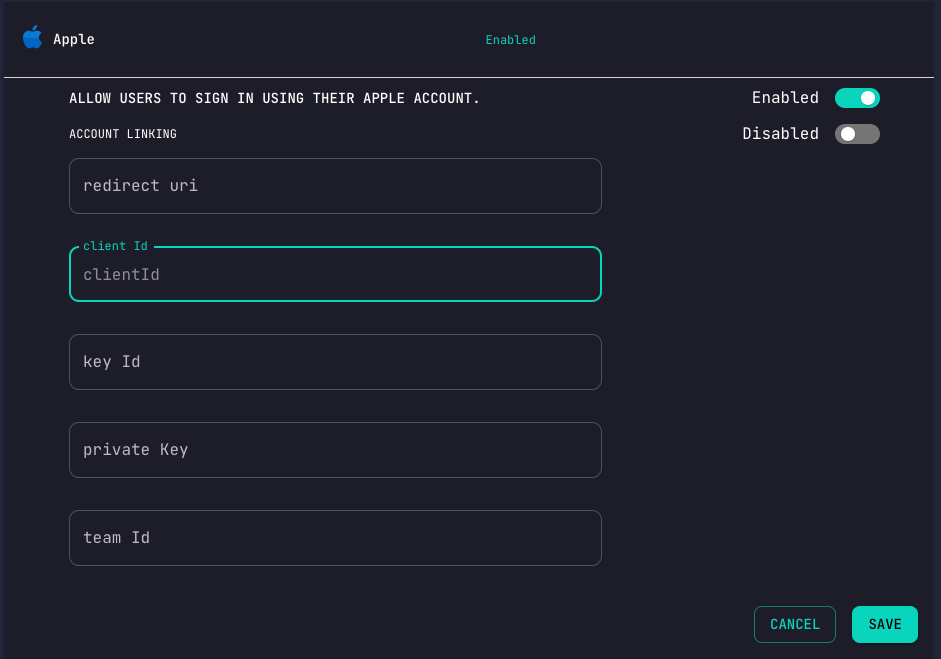
Enable Apple Provider and click on Save.
Authenticate with Apple
Now that you have configured the Apple provider, you can authenticate with it.
Redirect Method
The redirect method is the easiest way to authenticate with Apple.
It will redirect the user to the Apple login page, where they can sign in with their Apple ID.
After signing in, the user will be redirected back to your app.
To begin authenticating with Apple you request a redirect url with the proper scopes
curl --location --request GET 'http://localhost:3000/authentication/apple'
{
    "result": "https://appleid.apple.com/auth/authorize?client_id=io.conduit.app&redirect_uri=http%3A%2F%2Flocalhost%3A3000%2Fauthentication%2Fapple%2Fcallback&response_type=code%20id_token&response_mode=form_post&scope=name%20email&state=eyJpZCI6IjYzNjNjZGNkMDhkNTU2MDk1NmM4MGQ4OSIsImlhdCI6MTY2OTIxMDM1MywiZXhwIjoxNjY5MjgyMzUzfQ.TyvHCuyDKLiKFoEpaXRdbYoFwrzDlFiW4VdUVQJdf7U&nonce=eyJpZCI6IjYzNjNjZGNkMDhkNTU2MDk1NmM4MGQ4OSIsImlhdCI6MTY2OTIxMDM1MywiZXhwIjoxNjY5MjgyMzUzfQ.TyvHCuyDKLiKFoEpaXRdbYoFwrzDlFiW4VdUVQJdf7U"
}
Open a browser and navigate to the url returned to you from Conduit.
Now the /hook/authentication route has been triggered.
Once your browser has been redirected, your authentication has been completed.